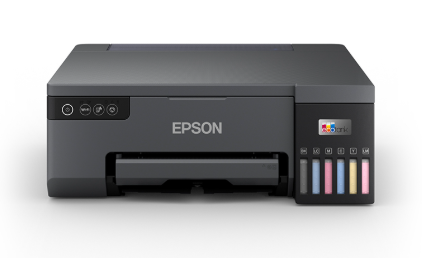
An Epson printer that won’t print can be frustrating, especially when you need documents urgently. The good news is that most Epson printing problems are caused by common issues like connectivity errors, stuck print jobs, low ink, clogged printheads, outdated drivers, or incorrect printer settings. This guide explains why your Epson printer isn’t printing and shows practical fixes you can apply on Windows or Mac.
1) Check the Basics First
Before trying advanced steps, confirm the basics. Make sure the printer is powered on, the control panel shows no critical error messages, and the paper tray has paper loaded properly. Verify that the ink cartridges are seated correctly and not empty. Also check for any visible paper jams, even small torn pieces of paper can stop printing.
If the printer display shows an error code, write it down. Error codes often point directly to the issue, such as paper feed problems or cartridge recognition errors.
2) Confirm the Printer Is Set as the Default Printer
Sometimes the print job goes to a different printer (like a saved PDF printer or an old device), making it seem like your Epson printer isn’t printing.
- Windows: Settings > Bluetooth & devices > Printers & scanners > select your Epson printer > Set as default.
- Mac: System Settings > Printers & Scanners > Default printer > choose your Epson printer.
3) Clear the Print Queue and Restart Printing
A stuck print job can block everything behind it. Clearing the print queue often fixes the problem immediately.
- Windows: Open Printers & scanners > choose Epson printer > Open print queue > cancel all jobs.
- Mac: System Settings > Printers & Scanners > select Epson printer > Open Print Queue > delete pending jobs.
After clearing the queue, restart your computer and printer, then try printing a test page.
4) Fix Epson Printer Offline or Not Responding Status
If your Epson printer shows “Offline” or “Not Responding,” your computer cannot communicate with the printer. This is common with WiFi printers after router changes or system updates.
- Restart your printer and WiFi router.
- Confirm the printer and computer are on the same WiFi network.
- If possible, move the printer closer to the router to improve signal strength.
- Remove and re-add the printer in Printers & scanners / Printers & Scanners.
If the printer is connected but still offline, add it using the printer’s IP address. Print a network status sheet from the printer to find the IP, then add it via the IP option on your computer.
5) Check USB or WiFi Connection Issues
Connection problems are a major reason an Epson printer isn’t printing.
USB Connection Fixes
- Try a different USB port on the computer.
- Use a different USB cable (a faulty cable can cause random disconnects).
- Avoid USB hubs and connect the printer directly to the computer.
WiFi Connection Fixes
- Confirm the WiFi password is correct (it is case-sensitive).
- Many Epson printers prefer 2.4GHz WiFi; ensure your printer is not trying to connect to 5GHz.
- Reset the printer’s network settings and reconnect using the wireless setup wizard.
- Restart router and printer to refresh the connection.
6) Update or Reinstall Epson Printer Drivers
Outdated or corrupted printer drivers can cause the printer to stop responding, print blank pages, or fail to print entirely. This often happens after Windows or macOS updates.
Download the latest Epson driver package for your printer model and operating system from Epson’s official support page. Uninstall the existing Epson software first, restart your computer, then install the updated driver. After installation, restart again and print a test page.
7) Run a Nozzle Check and Clean the Printhead
If your Epson printer powers on and accepts print jobs but prints faint, missing lines, or nothing at all, the printhead may be clogged (common if the printer hasn’t been used for a while).
- Open the printer’s maintenance menu (or Epson utility software on your computer).
- Run a Nozzle Check to see if lines are missing.
- Run Printhead Cleaning and wait for the process to complete.
- Print another nozzle check. Repeat only if needed.
Avoid running too many cleaning cycles back-to-back because it uses ink. If cleaning doesn’t help, let the printer rest for a while and try again later.
8) Verify Ink and Cartridge Recognition
If the printer shows low ink or cartridge errors, it may refuse to print. Ensure cartridges are installed correctly and genuine cartridges are recognized. If you recently replaced a cartridge, remove it and reinsert it firmly. Also check the protective tape is removed (new cartridges sometimes fail if tape is still on).
For EcoTank models, confirm ink levels are sufficient and caps are properly closed. Air in ink lines or extremely low ink can cause print quality problems or prevent printing.
9) Check Paper, Settings, and Print Preferences
Incorrect paper size or print settings can stop printing or produce unexpected results. In your print dialog, confirm the correct paper size (A4, Letter, etc.), paper type, and print quality. If printing a photo, select the correct photo paper type. If printing a document, select plain paper. Mismatched settings can cause errors or blank prints.
Also confirm you are not printing in “draft” mode if the output is too light.
10) Try a Printer Self-Test
If you suspect a computer-side issue, perform a printer self-test (if your model supports it) or print a status sheet directly from the printer menu. If the printer prints a test page successfully, the hardware is likely fine and the issue is with drivers, settings, or connection on the computer.
Final Thoughts
When an Epson printer isn’t printing, the cause is usually one of a few common problems: the printer is offline, the print queue is stuck, the connection is unstable, drivers are outdated, or the printhead is clogged. Start with simple checks like clearing the queue, setting the printer as default, and restarting devices. Then move to driver updates, network fixes, and printhead cleaning if needed. In most cases, these steps will restore normal printing and keep your Epson printer working reliably.