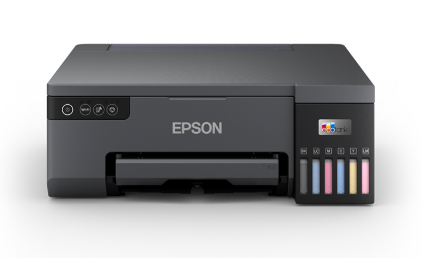
Wireless printing makes it easy to print from your laptop without cables and lets you place your Epson printer anywhere within WiFi range. Whether you use a Windows laptop or a MacBook, the setup usually comes down to three things: connect the Epson printer to your WiFi network, install the correct Epson driver/software on your laptop, and add the printer properly so it stays online. This guide walks you through the complete process and includes troubleshooting steps if your laptop can’t find the printer.
Before You Start: Quick Checklist
- WiFi name and password (SSID): Keep your network password ready.
- Same network: Your Epson printer and laptop must be connected to the same WiFi network.
- Printer model: Know your model number (example: Epson L3150, ET-2850, WF-2830).
- WiFi band compatibility: Many Epson printers connect best to 2.4GHz WiFi. If your router has separate 2.4GHz and 5GHz networks, use 2.4GHz for the printer.
Step 1: Connect the Epson Printer to Your WiFi Network
You must connect the printer to the router first. After that, your laptop can discover it for wireless printing.
Option A: WiFi Setup Wizard (Printers with a Screen)
- Turn on the Epson printer and wait until it is ready.
- Open Setup or Settings on the printer display.
- Select Network Settings or WiFi Setup.
- Choose WiFi Setup Wizard.
- Select your WiFi network name (SSID) and enter the password.
- Confirm and wait for the connection to complete.
When connected, the WiFi icon/light is usually steady (not blinking).
Option B: WPS Button Method (If Supported)
If your router supports WPS, you can connect without typing a password.
- Press the WPS button on your router (usually 3–5 seconds).
- Within 2 minutes, press and hold the printer’s WiFi/WPS button until the WiFi light starts blinking.
- Wait for the WiFi light to become steady, indicating connection.
Option C: Epson Smart Panel / Epson iPrint App (Many New Models)
- Install Epson Smart Panel (or Epson iPrint) on your phone.
- Open the app and select Set up a new printer.
- Follow the on-screen instructions to connect the printer to WiFi.
Step 2: Confirm the Printer’s Network Connection
If your laptop can’t find the printer later, you’ll need the printer’s IP address. Confirm it now to save time.
- Print a Network Status Sheet or WiFi/Network Report from the printer’s Network Settings.
- Look for an IP address like 192.168.0.25 or 192.168.1.10.
If the IP address shows 169.254.x.x or is missing, the printer is not properly connected to the router. Reconnect using the WiFi Setup Wizard.
Step 3: Add Epson Printer to a Windows Laptop (Wireless Printing)
A) Add the printer from Windows Settings
- Open Settings > Bluetooth & devices > Printers & scanners.
- Click Add device.
- Select your Epson printer when it appears, then click Add device.
B) Install the Epson driver for full features (recommended)
- If Windows installs a basic driver, it may print but miss advanced options.
- Install the Epson driver/software package for your model to improve stability, scanning features, and maintenance tools.
C) Print a test page
- Go to Printers & scanners and select your Epson printer.
- Open Printer properties.
- Click Print Test Page.
Step 4: Add Epson Printer to a Mac Laptop (Wireless Printing)
A) Add the printer from macOS settings
- Open System Settings (or System Preferences) > Printers & Scanners.
- Click Add Printer (+).
- Select your Epson printer from the list.
- Choose AirPrint or Epson driver (if available), then click Add.
B) Test print from your Mac
- Open a simple document in TextEdit.
- Click File > Print.
- Select your Epson printer and print one page.
Step 5: Add Epson Printer by IP Address (Best Fix if Not Found)
If your laptop can’t find the Epson printer automatically, add it using the IP address from the network status report. This method is reliable and often prevents frequent offline issues.
Windows: Add by TCP/IP
- Open Control Panel > Devices and Printers.
- Click Add a printer > The printer that I want isn’t listed.
- Select Add a printer using a TCP/IP address or hostname.
- Enter the printer IP address and complete setup.
Mac: Add via IP tab
- Go to Printers & Scanners > Add Printer (+).
- Select the IP tab.
- Enter the IP address.
- Protocol: choose AirPrint or IPP if available.
- Click Add.
Troubleshooting: Epson Printer Connected to WiFi but Laptop Can’t Print
1) Turn off “Use Printer Offline” (Windows)
- Open the Epson print queue and uncheck Use Printer Offline.
- Also uncheck Pause Printing if enabled.
2) Clear print queue
- Cancel stuck jobs and restart the printer.
- Restart the laptop if the queue remains stuck.
3) Disable VPN temporarily
VPNs can block local network printer discovery. Turn VPN off and try again.
4) Avoid Guest WiFi and Isolation settings
Guest networks often prevent printing. Also check router settings such as Client Isolation or AP Isolation and disable them if needed.
5) Keep printer on 2.4GHz
If the printer struggles on 5GHz or a mixed network, connect it to 2.4GHz for better compatibility.
6) Prevent IP changes (recommended)
Ask your router to reserve a fixed IP for the printer (DHCP reservation). This prevents the printer from disappearing or going offline after router restarts.
Conclusion
To connect an Epson printer to your laptop for wireless printing, start by connecting the printer to your WiFi network using the Setup Wizard, WPS, or Epson app. Then add the printer on Windows or macOS and install the correct Epson driver for full functionality. If your laptop can’t find the printer, add it using the printer’s IP address for the most stable connection. Finally, apply the troubleshooting tips—especially fixed IP reservation and avoiding guest WiFi—to keep your Epson printer online and printing reliably.