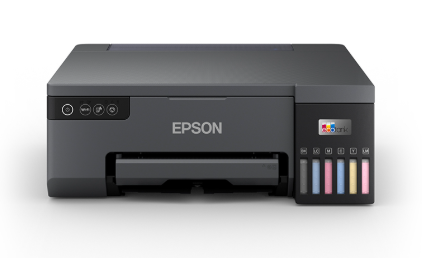
If you’re searching for How To Connect Epson Printer To Computer, you can do it using a USB cable, WiFi (wireless), or WiFi Direct. The correct method depends on your printer model and whether you want a stable single-computer setup (USB) or cable-free printing for multiple devices (WiFi). Follow the steps below and test printing after each method.
Before You Start
- Turn on the Epson printer and keep it close to your computer and router (for WiFi setup).
- Load paper and confirm ink levels to print a test page.
- Know your WiFi network name (SSID) and password if using wireless.
- Download the latest Epson driver package for your exact printer model.
Method 1: How To Connect Epson Printer To Computer Using USB
USB is the easiest and most stable method for one computer.
Step 1: Install Epson Printer Drivers
- Download the correct Epson drivers for your printer model and operating system.
- Run the installer and follow the on-screen instructions.
- When asked for connection type, choose USB Connection.
Step 2: Connect the USB Cable
- Connect the USB cable to the printer and your computer only when the installer prompts.
- Wait for the system to detect the printer and finish setup.
Step 3: Print a Test Page
- Windows: Settings > Printers & scanners > Epson printer > Print test page
- Mac: System Settings > Printers & Scanners > Select Epson printer > Print a test document
Method 2: How To Connect Epson Printer To Computer Over WiFi (Wireless)
Wireless connection lets you print without cables and share the printer with multiple devices.
Step 1: Connect the Printer to WiFi
- Open Setup or Home on the printer.
- Select Network Settings or WiFi Setup.
- Choose WiFi Setup Wizard.
- Select your WiFi name (SSID) and enter the password.
Tip: Many Epson models work best on 2.4 GHz WiFi. If your router has 2.4 GHz and 5 GHz, choose 2.4 GHz for better stability.
Step 2: Add Epson Printer to Your Computer
- Install Epson software and select Wireless Connection during setup.
- The installer should locate the printer on your network and add it automatically.
Step 3: Add Manually If Not Detected
- Windows: Settings > Printers & scanners > Add device (or add manually using IP address).
- Mac: Printers & Scanners > Add Printer (or use the IP tab).
Method 3: How To Connect Epson Printer To Computer Using WiFi Direct
WiFi Direct connects your computer directly to the printer without a router.
- Enable WiFi Direct from the printer’s Network/WiFi menu.
- On your computer, connect to the printer’s WiFi Direct network name (SSID).
- Enter the WiFi Direct password shown on the printer and install Epson drivers.
Fixes If Epson Printer Won’t Connect to Computer
- Restart printer, computer, and router (wireless).
- Clear stuck print jobs and set the Epson printer as default.
- Ensure printer and computer are on the same WiFi network.
- Try a different USB port/cable (USB setup).
- Disable firewall/antivirus briefly for testing, then allow Epson apps.
- Reinstall drivers if the printer shows “Driver unavailable” or isn’t detected.
Conclusion
Now you know How To Connect Epson Printer To Computer using USB, WiFi, or WiFi Direct. USB is best for a stable single-device setup, while WiFi is ideal for cable-free and multi-device printing. If the printer is not detected, reinstall drivers, confirm the same network, and clear the print queue.
FAQ (20)
- How do I connect my Epson printer to my computer? Use USB, WiFi setup wizard, or WiFi Direct.
- Do I need Epson drivers? Yes, install the correct drivers for your model and OS.
- Can I connect without internet? Yes, use USB or WiFi Direct.
- Why isn’t my printer detected? Driver issues, firewall blocks, wrong network, or bad cable.
- Which is better: USB or WiFi? USB is stable; WiFi is convenient for multiple devices.
- How do I connect via USB? Install drivers, then plug in USB when prompted.
- How do I connect via WiFi? Use WiFi Setup Wizard, then install Epson software on the computer.
- Does Epson support 5GHz WiFi? Many models prefer 2.4GHz; check your model support.
- What is WiFi Direct? A direct wireless connection between printer and computer.
- Where do I find the printer IP address? Print a Network Status Sheet or check Network settings.
- How do I add printer on Windows? Printers & scanners > Add device (or add by IP).
- How do I add printer on Mac? Printers & Scanners > Add Printer (or add via IP tab).
- Why is my Epson printer offline? WiFi drop, sleep mode, or “Use Printer Offline” enabled.
- How do I fix offline status? Restart devices and disable “Use Printer Offline.”
- Can antivirus block printing? Yes, allow Epson software in firewall settings.
- How do I clear print queue? Open the queue and cancel stuck jobs.
- Do I need a USB cable for wireless setup? Not always; many models connect from the control panel.
- What if my printer has no screen? Use Epson setup software or WPS (if supported).
- How long does setup take? Usually 5–10 minutes depending on method and network.
- What should I do after setup? Print a test page to confirm everything works.