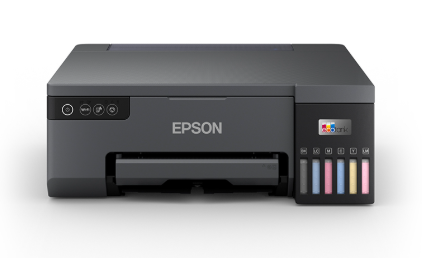
If your Epson printer shows “Offline” even though it’s connected to WiFi, you’re dealing with a common network-printing problem. In most cases, the printer is online on the router, but your Windows PC or Mac can’t communicate with it due to an IP address change, incorrect printer port, print queue issues, offline settings, driver problems, or router features that block device-to-device access. This guide walks you through proven fixes to bring your Epson printer back online and printing reliably.
1) Confirm the Printer Is Truly Connected to WiFi
First, make sure the printer isn’t just showing a WiFi light but actually has a valid network connection.
- Print a Network Status Sheet: From the printer menu, go to Network Settings and print the network report.
- Check the IP address: It should look like 192.168.x.x or 10.0.x.x.
If the IP shows 169.254.x.x or is blank, the printer is not properly connected to the router. Reconnect using the WiFi Setup Wizard and then continue with the steps below.
2) Restart the Router, Printer, and Computer (Simple but Effective)
Offline errors often happen after a router restart or power outage when devices reconnect in the wrong order.
- Turn off the printer.
- Unplug your router for 30 seconds, then plug it back in and wait until WiFi is fully stable.
- Turn the printer back on and wait for the WiFi light to become steady.
- Restart your computer.
After rebooting, try printing a test page. If it still shows offline, continue.
3) Disable “Use Printer Offline” and Resume Printing
On Windows 10/11
- Open Control Panel > Devices and Printers.
- Right-click your Epson printer > See what’s printing.
- Click the Printer menu.
- Uncheck Use Printer Offline.
- Uncheck Pause Printing if it’s enabled.
On Mac
- Go to System Settings > Printers & Scanners and confirm the printer is not paused.
- Open the print queue and cancel any stuck jobs.
4) Clear the Print Queue and Restart the Print Spooler (Windows)
A stuck print job can make the printer appear offline, even when it’s connected.
Clear the print queue
- Open the Epson print queue (See what’s printing).
- Cancel all documents.
- Restart the printer and try again.
Restart Print Spooler
- Press Windows + R, type services.msc, and press Enter.
- Find Print Spooler.
- Right-click > Restart.
5) Fix IP Address Changes (Most Common Cause)
Your printer may be connected to WiFi, but if the router assigned it a new IP address, your computer might still be trying to reach the old one. This is one of the biggest reasons an Epson printer shows offline but connected to WiFi.
Find the printer’s current IP address
- Print the network status sheet again and note the IP address.
Update the printer port on Windows
- Open Control Panel > Devices and Printers.
- Right-click your Epson printer > Printer properties.
- Go to the Ports tab.
- Select the port that matches the printer’s current IP address.
- If no port matches, click Add Port > Standard TCP/IP Port and enter the printer IP.
Add the printer by IP on Mac
- Go to System Settings > Printers & Scanners.
- Remove the Epson printer (if needed).
- Click Add Printer (+) > choose the IP tab.
- Enter the IP address and add it using AirPrint or Epson driver if available.
6) Check Router Settings That Can Break Printing
Some router features allow WiFi connection but block devices from talking to each other, which causes offline status.
- Guest WiFi: If your computer is on Guest WiFi, it may not reach the printer. Use the main network for both devices.
- AP/Client Isolation: Disable settings like AP Isolation, Client Isolation, or Wireless Isolation.
- VPN: Turn off VPN temporarily on your computer, as it can block local network discovery.
- Band mismatch: Keep both printer and computer on the same WiFi band/SSID where possible.
7) Update or Reinstall Epson Driver and Software
If your Epson printer remains offline after network fixes, the driver may be outdated or corrupted.
- Remove the printer from your computer’s printer list.
- Restart the computer.
- Install the latest Epson driver/software package for your model.
- Add the printer again (preferably using IP for stability).
On Mac, if things still fail, consider using Reset printing system from Printers & Scanners, then re-add the printer.
8) Make the Connection Stable (Prevent Offline in Future)
- Reserve a fixed IP: In your router settings, set a DHCP reservation for the printer so its IP does not change.
- Keep firmware updated: Update printer firmware if your model supports it.
- Place printer closer: Weak signal can cause intermittent offline status.
- Avoid frequent router resets: Reboots can change IPs and break ports unless IP is reserved.
Conclusion
If your Epson printer is offline but connected to WiFi, the issue is usually on the computer side: “Use Printer Offline” enabled, a stuck queue, or an IP/port mismatch after a router change. Start with restarts and offline settings, then fix the IP address and printer port. Check router features like guest WiFi and isolation, and reinstall drivers if needed. Once your printer is added correctly (ideally by IP) and the IP is reserved, your Epson printer should stay online and print reliably.