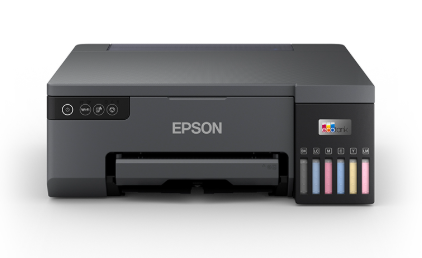
If your Epson printer is not responding, it may ignore print commands, stay stuck in the queue, show offline/paused status, or fail to scan and print even though it looks connected. This problem is usually caused by connection issues (WiFi/USB), stuck print jobs, incorrect default printer settings, outdated drivers, or system services like the print spooler. Follow this complete guide to troubleshoot and fix the issue on Windows and Mac.
1) Quick Checks That Fix the Problem Fast
- Restart everything: Turn off the printer, shut down your computer, and restart your router (if wireless). Turn the router on first, then the printer, then the computer.
- Check for errors: Look for paper jams, low ink warnings, open covers, or blinking red lights on the printer.
- Try a different document: Print a simple one-page text file to rule out app/file issues.
- Confirm the correct printer: Make sure you’re printing to the correct Epson printer and not a saved old printer entry.
2) Confirm the Connection (USB or WiFi)
If using USB
- Unplug and reconnect the USB cable firmly at both ends.
- Try a different USB port on your computer.
- Avoid USB hubs and connect directly to the computer.
- Try a different USB cable if the connection drops randomly.
If using WiFi
- Make sure the printer and computer are on the same WiFi network (SSID).
- Move the printer closer to the router during troubleshooting.
- Print a Network Status or WiFi Report to confirm the printer has a valid IP address like 192.168.x.x.
If the printer has no IP address or shows 169.254.x.x, reconnect it to WiFi using the printer’s WiFi Setup Wizard.
3) Fix Epson Printer Not Responding on Windows 10/11
A) Set Epson Printer as Default
- Open Settings > Bluetooth & devices > Printers & scanners.
- Select your Epson printer.
- Click Set as default.
B) Disable “Use Printer Offline” and Resume Printing
- Open Control Panel > Devices and Printers.
- Right-click the Epson printer > See what’s printing.
- Click Printer and uncheck Use Printer Offline and Pause Printing.
C) Clear the Print Queue
- Open the Epson print queue.
- Cancel all print jobs.
- Restart the printer and try printing again.
D) Restart Print Spooler Service
- Press Windows + R, type services.msc, and press Enter.
- Find Print Spooler.
- Right-click > Restart.
E) Remove and Re-add the Printer
- Go to Printers & scanners.
- Select your Epson printer > Remove.
- Restart your PC.
- Click Add device and add the printer again.
F) Add the Printer by IP Address (Wireless Stability Fix)
If Windows can’t communicate reliably, adding by IP often fixes “not responding” errors.
- Print a network status sheet and note the printer IP address.
- Open Control Panel > Devices and Printers > Add a printer.
- Choose The printer that I want isn’t listed.
- Select Add a printer using a TCP/IP address or hostname.
- Enter the IP address and finish setup.
4) Fix Epson Printer Not Responding on Mac
A) Check Printer Status and Clear Queue
- Open System Settings > Printers & Scanners.
- Select the Epson printer and open the print queue.
- Cancel stuck jobs and try printing again.
B) Remove and Re-add the Epson Printer
- In Printers & Scanners, select the Epson printer.
- Click Remove.
- Click Add Printer (+) and add it again.
C) Add Epson Printer Using IP Address
- Print the printer’s network report and note the IP address.
- Go to Printers & Scanners > Add Printer (+).
- Select the IP tab.
- Enter the IP address and add using AirPrint or the